> ## Documentation Index
> Fetch the complete documentation index at: https://ayakaleaf-pro.mintlify.site/llms.txt
> Use this file to discover all available pages before exploring further.
# Overleaf Import API
### "Overleaf Import API" feature
Starting with Ayakaleaf Pro v6.3, you can create links that import a LaTeX file or a zipped project from a URL and open it in your own Ayakaleaf instance, similar to Overleaf’s [“Open in Overleaf” API](https://cn.overleaf.com/devs).
This feature is enabled by default, you just need to visit `your.overleaf.com/devs` to see detailed page and instructions.
The `/devs` page requires a login unless `OVERLEAF_ALLOW_PUBLIC_ACCESS=true`, see [#signed-out-visitors](/on-premises/configuration/overleaf-toolkit/overleaf-import-api#signed-out-visitors "mention").
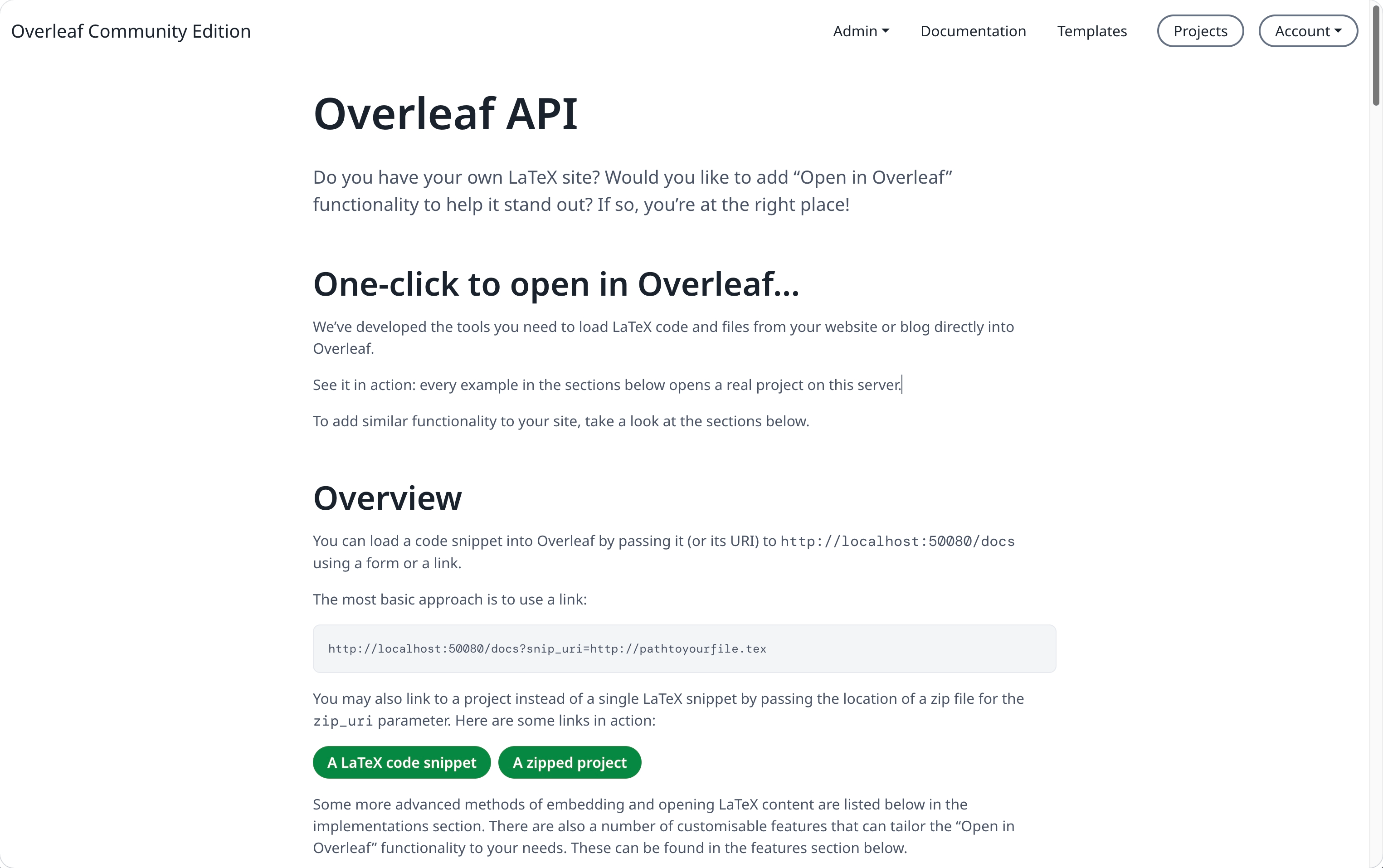 For example, if you host a LaTeX file at `https://example.com/main.tex` or a complete project at `https://example.com/project.zip`, you can create a link that imports it into your own Ayakaleaf Pro instance and opens the new project:
```text wrap theme={null}
https://ayakaleaf.example.com/docs?snip_uri=https%3A%2F%2Fexample.com%2Fmain.tex
```
```text wrap theme={null}
https://ayakaleaf.example.com/docs?snip_uri=https%3A%2F%2Fexample.com%2Fproject.zip
```
Replace `ayakaleaf.example.com` with your instance’s domain.
#### Open a LaTeX project in Ayakaleaf Pro
Starting with Ayakaleaf Pro v6.3, you can create a link that imports a LaTeX file or a zipped project into your own Ayakaleaf Pro instance. When someone opens the link, Ayakaleaf Pro creates a new project from the supplied file and opens it in the editor.
Send the link to your instance’s `/docs` endpoint:
| Parameter | Description | Example |
| - | - | - |
| `snip_uri` | URL of a LaTeX file to import. A single ZIP file is also accepted, but use `zip_uri` for projects. | `https://example.com/main.tex` |
| `zip_uri` | URL of a zipped LaTeX project to import. | `https://example.com/project.zip` |
| `snip_uri[]` | Import multiple files by repeating this parameter. | `snip_uri[]=.../main.tex&snip_uri[]=.../refs.bib` |
| `snip_name[]` | Set the filename for each `snip_uri[]`, in the same order. | `snip_name[]=main.tex` |
| `engine` | Set the compiler: `latex_dvipdf`, `pdflatex`, `xelatex`, or `lualatex`. | `engine=xelatex` |
| `main_document` | Set the main `.tex` file in the imported project. | `main_document=main.tex` |
| `name` | Set the name of the new project. `project_name` is also accepted. | `name=My%20Project` |
For example, if your files are hosted on `example.com`, these links import them into an Ayakaleaf Pro instance hosted at `ayakaleaf.example.com` .
#### Import a project using Base64
You can embed a LaTeX file or a zipped project directly in an “Open in Ayakaleaf” link as a Base64 data URL. This lets you create an import link without hosting the file at a separate URL.
| Content | Parameter | Data URL format |
| - | - | - |
| LaTeX file | `snip_uri` | `data:application/x-tex;base64,` |
| Zipped project | `zip_uri` | `data:application/zip;base64,` |
To import a ZIP project, Base64-encode the ZIP file and pass it through `zip_uri` instead. Use `encodeURIComponent` on the complete data URL when constructing either link. For large projects, use a hosted ZIP URL because browser and server URL-length limits can make Base64 links impractical.
#### Add an “Open in Ayakaleaf” button
You can use an HTML form to import a file when a visitor clicks a button. Submit the form to your instance’s `/docs` endpoint with `method="post"`.
For a hosted LaTeX file:
```text theme={null}
```
To import a zipped project, replace `snip_uri` with `zip_uri` and point it to the ZIP file. You can also submit LaTeX source directly using `snip` for raw text or `encoded_snip` for URL-encoded text.
Replace `ayakaleaf.example.com` with your instance’s domain. If your instance enables cross-origin request blocking, add the website hosting the form to `ALLOWED_ORIGINS`.
#### Signed-out visitors
The new project is created in the visitor's account, so they need to log in. How a signed-out visitor gets there depends on how the import is sent:
* **Links** (`GET /docs?...`) work on every instance: the visitor is sent to the login page and the import continues after logging in.
* **Forms** (`POST /docs`) need `OVERLEAF_ALLOW_PUBLIC_ACCESS=true` for signed-out visitors. The submission is then kept for 10 minutes until the visitor has logged in, and used once.
By default (`OVERLEAF_ALLOW_PUBLIC_ACCESS` not set), a form submitted by a signed-out visitor is sent to the login page before Ayakaleaf Pro reads it, and the submission is lost: after logging in, the visitor sees *no snippet, snip\_uri or zip\_uri provided*. Use links, ask visitors to log in first, or enable public access, see [#page-access](/on-premises/configuration/overleaf-toolkit/public-access#page-access "mention").
Ayakaleaf Pro uses the `linked-url-proxy` microservice (mainly used for [external-url.md](/on-premises/configuration/overleaf-toolkit/external-url "mention")) to fetch external resources. In general, any publicly accessible ZIP or TeX resource available over the Internet can be imported. Resources hosted on private or internal networks are blocked for security reasons.
Starting with the re-released Ayakaleaf Pro 6.3.0 (October 3, 2026), you can configure an HTTP(S) proxy for fetching external ZIP and TeX resources with `OVERLEAF_LINKED_URL_OUTBOUND_PROXY`. See [#outbound-proxy](/on-premises/configuration/overleaf-toolkit/external-url#outbound-proxy "mention") for configuration and network access restrictions.
This documentation is built and hosted on [Mintlify](https://mintlify.com), a developer documentation platform.
For example, if you host a LaTeX file at `https://example.com/main.tex` or a complete project at `https://example.com/project.zip`, you can create a link that imports it into your own Ayakaleaf Pro instance and opens the new project:
```text wrap theme={null}
https://ayakaleaf.example.com/docs?snip_uri=https%3A%2F%2Fexample.com%2Fmain.tex
```
```text wrap theme={null}
https://ayakaleaf.example.com/docs?snip_uri=https%3A%2F%2Fexample.com%2Fproject.zip
```
Replace `ayakaleaf.example.com` with your instance’s domain.
#### Open a LaTeX project in Ayakaleaf Pro
Starting with Ayakaleaf Pro v6.3, you can create a link that imports a LaTeX file or a zipped project into your own Ayakaleaf Pro instance. When someone opens the link, Ayakaleaf Pro creates a new project from the supplied file and opens it in the editor.
Send the link to your instance’s `/docs` endpoint:
| Parameter | Description | Example |
| - | - | - |
| `snip_uri` | URL of a LaTeX file to import. A single ZIP file is also accepted, but use `zip_uri` for projects. | `https://example.com/main.tex` |
| `zip_uri` | URL of a zipped LaTeX project to import. | `https://example.com/project.zip` |
| `snip_uri[]` | Import multiple files by repeating this parameter. | `snip_uri[]=.../main.tex&snip_uri[]=.../refs.bib` |
| `snip_name[]` | Set the filename for each `snip_uri[]`, in the same order. | `snip_name[]=main.tex` |
| `engine` | Set the compiler: `latex_dvipdf`, `pdflatex`, `xelatex`, or `lualatex`. | `engine=xelatex` |
| `main_document` | Set the main `.tex` file in the imported project. | `main_document=main.tex` |
| `name` | Set the name of the new project. `project_name` is also accepted. | `name=My%20Project` |
For example, if your files are hosted on `example.com`, these links import them into an Ayakaleaf Pro instance hosted at `ayakaleaf.example.com` .
#### Import a project using Base64
You can embed a LaTeX file or a zipped project directly in an “Open in Ayakaleaf” link as a Base64 data URL. This lets you create an import link without hosting the file at a separate URL.
| Content | Parameter | Data URL format |
| - | - | - |
| LaTeX file | `snip_uri` | `data:application/x-tex;base64,` |
| Zipped project | `zip_uri` | `data:application/zip;base64,` |
To import a ZIP project, Base64-encode the ZIP file and pass it through `zip_uri` instead. Use `encodeURIComponent` on the complete data URL when constructing either link. For large projects, use a hosted ZIP URL because browser and server URL-length limits can make Base64 links impractical.
#### Add an “Open in Ayakaleaf” button
You can use an HTML form to import a file when a visitor clicks a button. Submit the form to your instance’s `/docs` endpoint with `method="post"`.
For a hosted LaTeX file:
```text theme={null}
```
To import a zipped project, replace `snip_uri` with `zip_uri` and point it to the ZIP file. You can also submit LaTeX source directly using `snip` for raw text or `encoded_snip` for URL-encoded text.
Replace `ayakaleaf.example.com` with your instance’s domain. If your instance enables cross-origin request blocking, add the website hosting the form to `ALLOWED_ORIGINS`.
#### Signed-out visitors
The new project is created in the visitor's account, so they need to log in. How a signed-out visitor gets there depends on how the import is sent:
* **Links** (`GET /docs?...`) work on every instance: the visitor is sent to the login page and the import continues after logging in.
* **Forms** (`POST /docs`) need `OVERLEAF_ALLOW_PUBLIC_ACCESS=true` for signed-out visitors. The submission is then kept for 10 minutes until the visitor has logged in, and used once.
By default (`OVERLEAF_ALLOW_PUBLIC_ACCESS` not set), a form submitted by a signed-out visitor is sent to the login page before Ayakaleaf Pro reads it, and the submission is lost: after logging in, the visitor sees *no snippet, snip\_uri or zip\_uri provided*. Use links, ask visitors to log in first, or enable public access, see [#page-access](/on-premises/configuration/overleaf-toolkit/public-access#page-access "mention").
Ayakaleaf Pro uses the `linked-url-proxy` microservice (mainly used for [external-url.md](/on-premises/configuration/overleaf-toolkit/external-url "mention")) to fetch external resources. In general, any publicly accessible ZIP or TeX resource available over the Internet can be imported. Resources hosted on private or internal networks are blocked for security reasons.
Starting with the re-released Ayakaleaf Pro 6.3.0 (October 3, 2026), you can configure an HTTP(S) proxy for fetching external ZIP and TeX resources with `OVERLEAF_LINKED_URL_OUTBOUND_PROXY`. See [#outbound-proxy](/on-premises/configuration/overleaf-toolkit/external-url#outbound-proxy "mention") for configuration and network access restrictions.
This documentation is built and hosted on [Mintlify](https://mintlify.com), a developer documentation platform.