> ## Documentation Index
> Fetch the complete documentation index at: https://ayakaleaf-pro.mintlify.site/llms.txt
> Use this file to discover all available pages before exploring further.
# Migrating to LDAP or SAML
```text theme={null}
{
_id: '123',
email: 'alice@example.com'
first_name: 'Alice',
last_name: 'Jones'
}
```
Now, you want to integrate with your company's LDAP/Active Directory system. In that system, Alice's details are:
```text theme={null}
Alice:
- uid: 'alicejones'
- mail: 'alicejones@tech.example.com'
- givenName: 'Alice'
- sn: 'Jones'
```
Your goal is to have Alice log in with their LDAP username (`alicejones`) and password instead of their old Overleaf credentials, without losing any of their work. Here’s how to make that happen.
This process will require recreating the **sharelatex** container which will result in some downtime. We highly recommend that you familiarize yourself with this process by going through it on a test/staging environment first.
Overleaf accounts are tied to email addresses, so the first step is to get your users' Overleaf emails in sync with their LDAP or SAML emails.
In our example, you'd ask Alice to sign into their Overleaf account and change their email from `alice@example.com` to `alicejones@tech.example.com`.
Don't forget yourself! If you're an admin, you'll need to update your own email address too.
If you have a lot of users, you can use the [Username migration](/on-premises/user-and-project-management/user-management/username-migration) script to change a user's primary email address in bulk.
Once everyone's email addresses are updated, it's time to flick the switch! You'll need to set the right environment variables for your new authentication method and then recreate the **sharelatex** container using the `bin/up -d` command.
This swaps out the standard Overleaf login form for your new LDAP or SAML one.
You can find the relevant information for enabling LDAP [here](/on-premises/configuration/overleaf-toolkit/authentication/ldap-authentication), and SAML 2.0 [here](/on-premises/configuration/overleaf-toolkit/authentication/saml-authentication).
The next time Alice goes to log in, they'll see the new form.
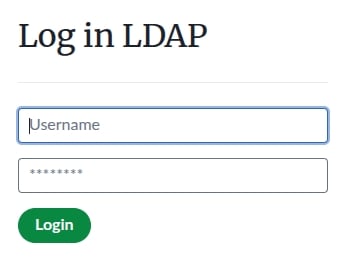 They can enter their LDAP username (`alicejones`) and password, and because their email address now matches the one in LDAP, they'll be logged right into their existing Overleaf account. All their projects will be exactly where they left them.
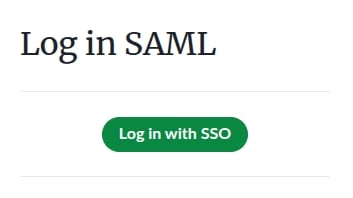
If you've enabled SAML 2.0, users will see a button that when clicked, will redirect them to your IdP to enter their credentials. On successful authentication, they'll be redirected back to your Overleaf instance and logged into their account.
They can enter their LDAP username (`alicejones`) and password, and because their email address now matches the one in LDAP, they'll be logged right into their existing Overleaf account. All their projects will be exactly where they left them.
If you've enabled SAML 2.0, users will see a button that when clicked, will redirect them to your IdP to enter their credentials. On successful authentication, they'll be redirected back to your Overleaf instance and logged into their account.
 See the [Environment Variables](/on-premises/configuration/overleaf-toolkit/environment-variables) page for information on customizing the login page experience.
And if you ever need to roll-back, just comment out the LDAP/SAML configuration and recreate the **sharelatex** container using the `bin/up -d` command. Users will then be able to log in using their current email address and Overleaf-specific password.
## Going the other way: Switching from LDAP/SAML back to native authentication
What if you've been using LDAP or SAML for a while and want to move to Overleaf's built-in login system (maybe you deprecated your LDAP)? No problem! Here's how you can make that switch.
Your users' accounts are already linked to their LDAP or SAML email addresses. This is the email they'll use to log in from now on, so just make sure everything looks right.
Simply remove or unset the LDAP/SAML configuration settings and recreate the **sharelatex** container using the `bin/up -d` command. This will bring back the native Overleaf email and password login form.
See the [Environment Variables](/on-premises/configuration/overleaf-toolkit/environment-variables) page for information on customizing the login page experience.
And if you ever need to roll-back, just comment out the LDAP/SAML configuration and recreate the **sharelatex** container using the `bin/up -d` command. Users will then be able to log in using their current email address and Overleaf-specific password.
## Going the other way: Switching from LDAP/SAML back to native authentication
What if you've been using LDAP or SAML for a while and want to move to Overleaf's built-in login system (maybe you deprecated your LDAP)? No problem! Here's how you can make that switch.
Your users' accounts are already linked to their LDAP or SAML email addresses. This is the email they'll use to log in from now on, so just make sure everything looks right.
Simply remove or unset the LDAP/SAML configuration settings and recreate the **sharelatex** container using the `bin/up -d` command. This will bring back the native Overleaf email and password login form.
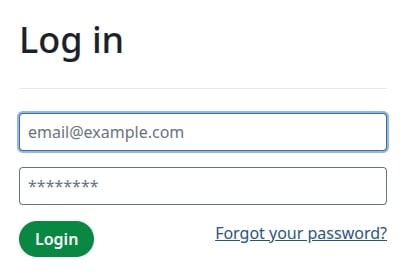 When your users visit the login page now, they'll see the Overleaf login form instead of the LDAP/SAML one.
Since they may never have had a native Overleaf password, they'll need to create one. Each user should:
* Click the "Forgot your password?" link.
* Enter the email address associated with their account (the one from LDAP/SAML).
* Follow the link in the password-reset email to set a new password.
If you haven't already done so, check out our guide on enabling [Email delivery](/on-premises/configuration/overleaf-toolkit/email-delivery).
Once that's done, they can log in with their email and their new Overleaf-specific password to access all their projects.
This documentation is built and hosted on [Mintlify](https://mintlify.com), a developer documentation platform.
When your users visit the login page now, they'll see the Overleaf login form instead of the LDAP/SAML one.
Since they may never have had a native Overleaf password, they'll need to create one. Each user should:
* Click the "Forgot your password?" link.
* Enter the email address associated with their account (the one from LDAP/SAML).
* Follow the link in the password-reset email to set a new password.
If you haven't already done so, check out our guide on enabling [Email delivery](/on-premises/configuration/overleaf-toolkit/email-delivery).
Once that's done, they can log in with their email and their new Overleaf-specific password to access all their projects.
This documentation is built and hosted on [Mintlify](https://mintlify.com), a developer documentation platform.