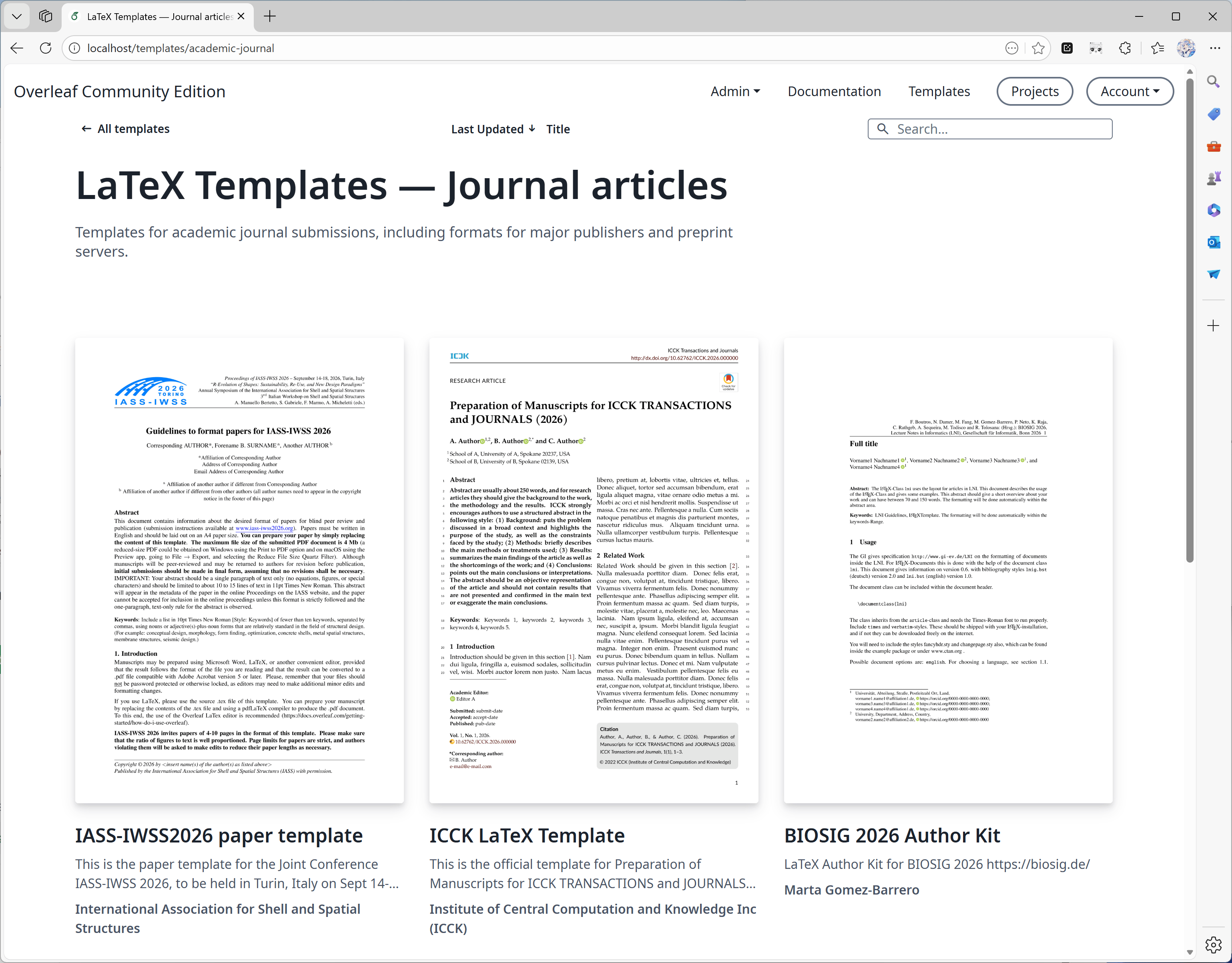
By default only logged-in users can browse the gallery and open template links. To share templates with signed-out visitors, also set OVERLEAF_ALLOW_PUBLIC_ACCESS=true, see Page Access. Creating a project from a template always requires a login.
Starting with 6.3.0, the gallery performs pagination, search, and sorting on the server. No migration is required. For large galleries, see the optional MongoDB indexes in the release notes.The Template Gallery feature is controlled using the following environment variables:
OVERLEAF_TEMPLATE_GALLERY: Set to true to enable the Template Gallery.
OVERLEAF_TEMPLATE_CATEGORIES: An optional whitespace-separated list of zero or more template category keys. Valid keys include:
academic-journal
book
presentation
poster
cv
homework
bibliography
calendar
formal-letter
report
thesis
newsletter
The special key all is automatically appended. This key represents a category that includes all templates.For each category key, the following optional environment variables can be set:
TEMPLATE_<KEY>_NAME: The display name of the template category.
TEMPLATE_<KEY>_DESCRIPTION: A short description of the category.
If a category key contains a hyphen (-), replace it with an underscore (_) in the environment variable names.
ENABLE_CONVERSIONS: Must be set to true to enable thumbnail and preview generation for templates.
Admins can publish templates. You can also assign a non-admin user to manage the curated templates shown in your local gallery at /templates.To do this, you’ll need to set the environment variable OVERLEAF_TEMPLATES_USER_ID in toolkit/config/variables.env to the ID of the user who will be responsible for template management within your instance, for example:
Create a project containing the template’s source code and make sure it compiles.
In the editor, choose File > Manage Template.
In the form that appears, enter the template details:
The Title must be unique.
The Description field supports Markdown formatting.
The Author field accepts Markdown-formatted links.
After submission, template details can be edited, or the template can be deleted via the Template Gallery page. Admins and the templates user (OVERLEAF_TEMPLATES_USER_ID) can manage any template.Here is an example:
################## TEMPLATES ##################ENABLE_CONVERSIONS=trueOVERLEAF_TEMPLATE_GALLERY=trueOVERLEAF_TEMPLATE_CATEGORIES=academic-journal book presentation poster cv homework bibliography calendar formal-letter report thesis newsletterTEMPLATE_ACADEMIC_JOURNAL_NAME=Journal articlesTEMPLATE_ACADEMIC_JOURNAL_DESCRIPTION=Templates for academic journal submissions, including formats for major publishers and preprint servers.TEMPLATE_BIBLIOGRAPHY_NAME=BibliographiesTEMPLATE_BIBLIOGRAPHY_DESCRIPTION=Styles for creating and managing bibliographies with BibTeX or BibLaTeX. Suitable for use in academic papers, theses, and reports.TEMPLATE_BOOK_NAME=BooksTEMPLATE_BOOK_DESCRIPTION=Templates for writing books or long-form documents, including chapter structuring, front matter, and indexing.TEMPLATE_CALENDAR_NAME=CalendarsTEMPLATE_CALENDAR_DESCRIPTION=Templates to create yearly, monthly, or weekly calendars. Useful for personal planners or event scheduling.TEMPLATE_CV_NAME=CVs and résumésTEMPLATE_CV_DESCRIPTION=Templates for CVs and résumés with various formats for academic, industry, and creative positions.TEMPLATE_FORMAL_LETTER_NAME=Formal lettersTEMPLATE_FORMAL_LETTER_DESCRIPTION=Templates for professional letters, such as cover letters, recommendation letters, and official correspondence.TEMPLATE_HOMEWORK_NAME=AssignmentsTEMPLATE_HOMEWORK_DESCRIPTION=Templates for homework, coursework, and problem sets. Designed to be clean and well-structured for students and educators.TEMPLATE_NEWSLETTER_NAME=NewslettersTEMPLATE_NEWSLETTER_DESCRIPTION=Templates for creating newsletters with formats for academic, corporate, or community communications.TEMPLATE_POSTER_NAME=PostersTEMPLATE_POSTER_DESCRIPTION=Templates for scientific and academic posters, typically used in conferences and research presentations.TEMPLATE_PRESENTATION_NAME=PresentationsTEMPLATE_PRESENTATION_DESCRIPTION=Templates for Beamer and other presentation formats, tailored for academic talks and lectures.TEMPLATE_REPORT_NAME=ReportsTEMPLATE_REPORT_DESCRIPTION=Templates for technical, lab, or project reports. Includes sections for figures, tables, and references.TEMPLATE_THESIS_NAME=ThesesTEMPLATE_THESIS_DESCRIPTION=Templates for writing theses and dissertations, following institutional formatting and citation guidelines.TEMPLATE_ALL_NAME=All templatesTEMPLATE_ALL_DESCRIPTION=Browse a collection of all available LaTeX templates, categorized by document type, style, and purpose.
As Overleaf Pro has been architected to work offline, there isn’t an automated way to integrate overleaf.com gallery templates into your on-premise installation, it is however possible to do this manually on a per template basis.By default, Overleaf Pro is configured to use a basic scheme version of TeXLive for compiles. This basic version is lightweight and only contains a very limited subset of LaTeX packages which, will most likely result in missing package errors for your users when attempting to use templates from overleaf.com on your local on-premise instance.Unfortunately, whilst there isn’t an automatic way to install missing packages, we do have a configurable setting within Server Pro that will allow your users to compile projects with access to more packages, and in a more secure way. This feature is called Sandbox Compiles (also known as Sibling Containers).To ensure that downloaded templates are compatible with your on-premise Server Pro instance, we highly recommend that you enable Sandbox Compiles as this feature will provide your users with access to the same TeX Live environment as that on overleaf.com. These images contain the most popular packages and fonts and have already been tested against our gallery templates.You can find additional information about configuring what TeX Live versions users are able to choose from within their project along with setting the default TeX Live image version for new projects in the Changing the TeX Live Image section of our documentation.
Can I delete the project after publishing the corresponding template?
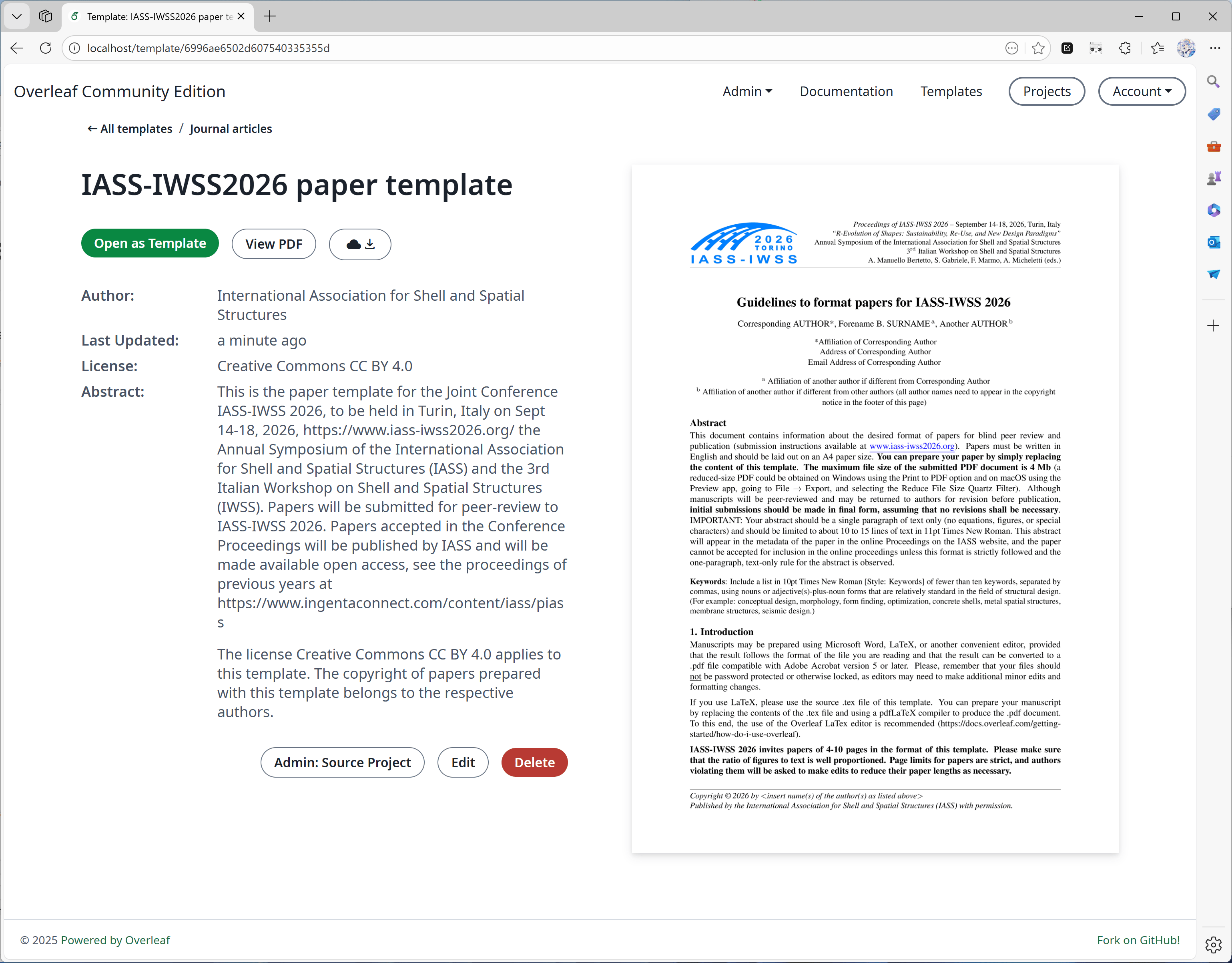
Answer: Yes, but we do not recommend doing so. When you publish a template, we take a snapshot of the project and save the project as a zip file at the time of publication. This ensures that even if you delete the project corresponding to the template, the template will not be affected.However, we will also record the ProjectID associated with this template, which makes it easy for you to update the template in the future.If you delete the corresponding project, you will not see the “Admin: Source Project” button on the template details page (see image below).
For some projects, why is it that releasing a template takes such a long time?
Answer: When you publish the template, we save the project as a zip and a pdf file, which is usually quick. However, we also need to generate thumbnails for the PDF so they can be displayed in the template details.Thumbnail generation time typically depends on the content of your PDF’s first page. To balance bewteen display quality and convert time, we choose a middle one as width.However, if the first page of the PDF contains a lot of text, converting the thumbnails may take 40 seconds or even more, please be patient. Here is an example of large poster, it will take longer time.
A large poster
Last modified on October 6, 2026
Was this page helpful?
Assistant
Responses are generated using AI and may contain mistakes.