

This feature is developed by ayaka-notes/ayakaleaf-pro. It is introduced from v6.3.1 and later. The tools for history, tracked changes, project chat, new comments and moving files are introduced from v6.3.3 and later, see New in v6.3.3.
Setup
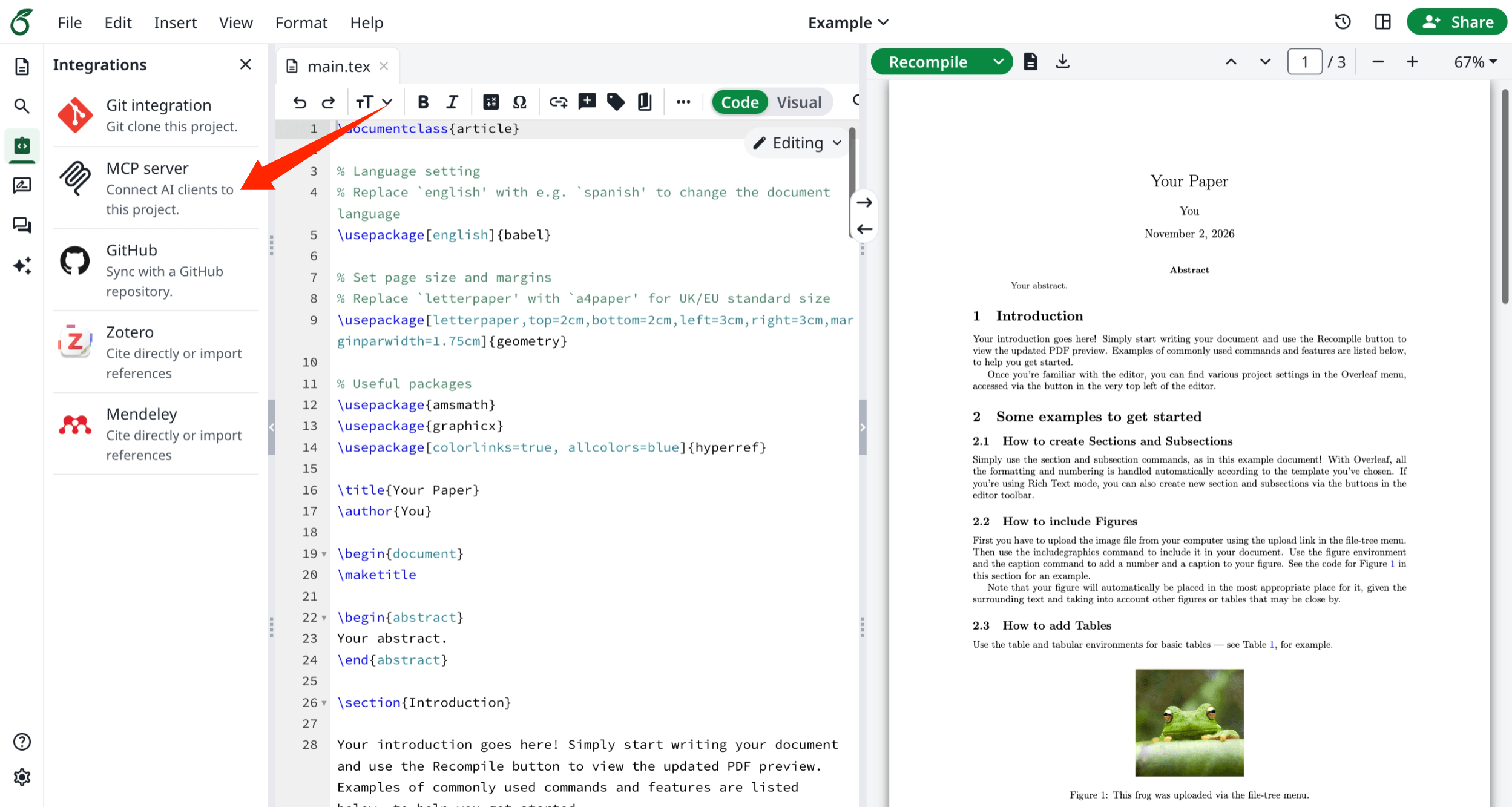
The MCP server comes with the Git integration: enable git-bridge, and the MCP server is available too. There is nothing else to configure.Connect an AI client
- In Account Settings, generate a Git authentication token. The same token is used for the MCP server and for Git.
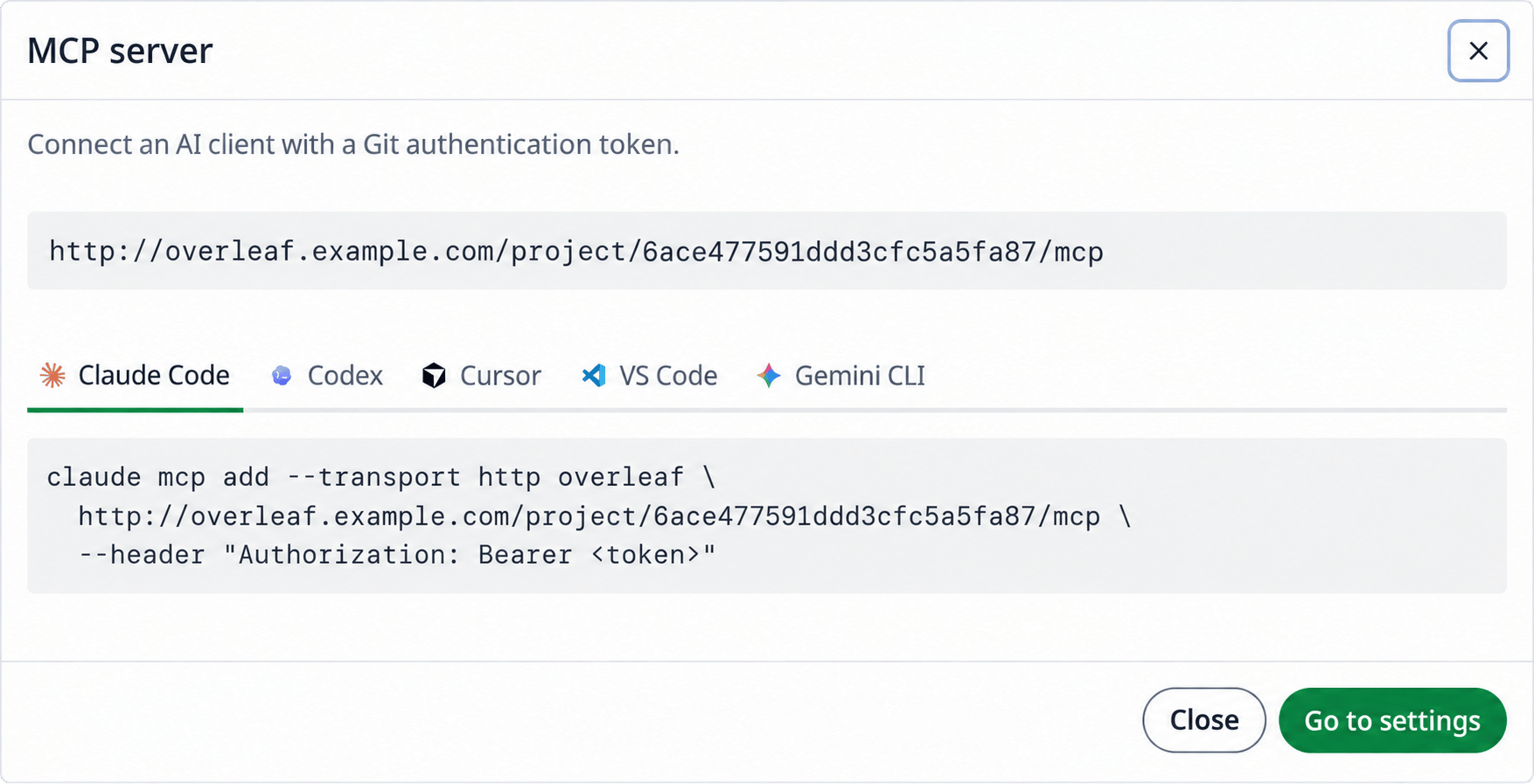
- In the editor, open Integrations and click MCP server. It shows the address of the project’s MCP server,
https://<your-overleaf>/project/<project_id>/mcp, and how to add it to each AI client: copy the command, and replace<token>with your token.
Authorization: Bearer <token>. For example, the command for Claude Code is:
Usage
Once connected, ask the AI client in plain words. For example:Tools
v6.3.3 has 33 tools, or 31 with
OVERLEAF_DISABLE_CHAT=true, which removes the chat tools. v6.3.1 and v6.3.2 have the other 17: everything above except move_file, create_folder, add_comment, edit_comment_message, delete_comment_message, the tracked changes tools, the chat tools, and the history tools other than list_versions. In v6.3.3, read_file also reads a file at a version of the history, edit_file and write_file take trackChanges, and update_settings also sets the spell check language.
Edits made with edit_file, write_file and move_file show live in the editor and merge with those of collaborators. For many files at once or binary files, the AI client can also clone the project with Git and push.
With trackChanges, an edit of an existing file is a tracked change of the token’s user, even when track changes is off in the project; a new file never is. Without it, edits follow the track changes setting of the project.
Permissions
The MCP server follows the project’s sharing settings, like Git:- Everyone who can view the project can read it, compile it and download its output.
- Only the owner and editors can change its files and settings, restore versions, and accept or reject tracked changes.
- Reviewers can also add comments and reply to them, resolve, reopen or delete the comments they started, and save versions. They cannot edit files, not even as tracked changes.
- Everyone edits only their own comment messages, and reviewers delete only their own.
- Only the owner deletes versions that others saved.
- Viewers who joined with a link cannot see the comments, tracked changes, history or chat, as in the editor. Invited viewers can see them and use the chat.
- If the project owner does not have Full project history, the history tools show only the changes of the last 24 hours, as the history panel does. Admins see all of them.
Q&A
I don't see Integrations or MCP server in the editor
I don't see Integrations or MCP server in the editor
Answer: The MCP server has no environment variable of its own. It is enabled with
GIT_BRIDGE_ENABLED=true in config/overleaf.rc, see Git integration. After changing it, run bin/up -d. Without the git-bridge, the editor does not show the Integrations tab in its left rail.The AI client says "Track changes is off for this project"
The AI client says "Track changes is off for this project"
Answer: The client asked for a tracked change, but the project owner’s account does not have track changes. Click Admin, then Manage Users, open the owner, and on the Features tab switch on Track changes, see Features. Edits without
trackChanges still work.The AI client sees only the changes of the last 24 hours
The AI client sees only the changes of the last 24 hours
Answer: The project owner’s account does not have full project history, so the history tools show what the history panel shows: the changes of the last 24 hours. Click Admin, then Manage Users, open the owner, and on the Features tab switch on Full project history, see Features.